Columns
Click on the letter A and you will notice that all of column A is selected.
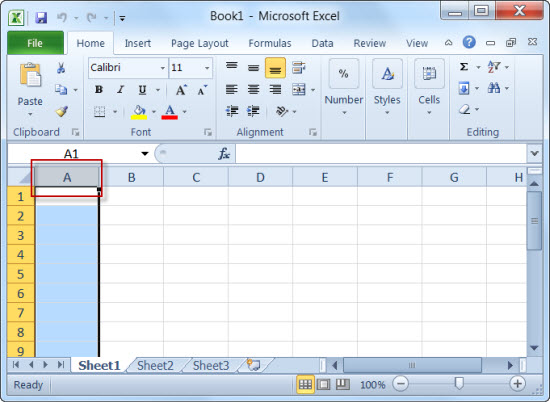
IMAGE ONE
Column Size
To change the width of one column, drag the boundary on the right side of the column heading (Image One) until the column is the width that you want.
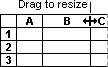
IMAGE TWO
To change the width of multiple columns, select the columns that you want to change, and then drag a boundary to the right of a selected column heading.
To change the width of columns to fit the contents, select the column or columns that you want to change, and then double-click the boundary to the right of a selected column heading.
To change the width of all columns on the worksheet, click the Select All button (Image Two), and then drag the boundary of any column heading.

IMAGE THREE